How to Setup a DRT Time Window
When running a DRT service, the demand is driven by passenger requests on the day, or in advance of the day for travel.
For this reason, you need to setup what we call a "time window" for these services to happen. The wider the better, as then you can accommodate return journeys easier. For example 7am to 7pm.
If you set up 10am - 12pm it doesn't offer much opportunity to handle return journeys.
Here's a breakdown of how to create the time window step by step:
Step 1
- Go to the Main menu
- Select 'Route manager'
- Build a Route
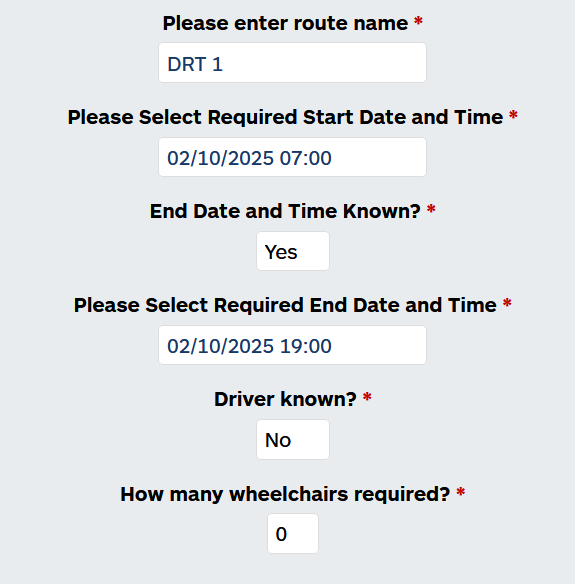
- Enter a name (we recommend copying this too)
- Set the required date and the start time e.g. 1st November 7am (this is the start time the bus will leave the depot)
- Set the required End time e.g. 1st November, 7pm (this is the time the bus is back at the depot unless you have allowed slack in the settings)
- Set driver known as No
- Select the related number of wheelchairs the vehicle can handle - we recommend setting to 1.
The screen would look something like this:
Then press next step.
Step 2
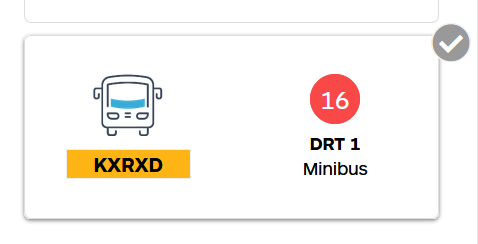
- Now you simple select the vehicle you are assigning to the DRT journey - the vehicle which passengers will be being booked onto.
- Select the vehicle
- Then Press Next Step
Now you need to set the starting point and ending point of the DRT service.
Please note that the starting point and ending point require a full address entered and a pinned What3Words location stored in your locations within Road XS.
Step 3
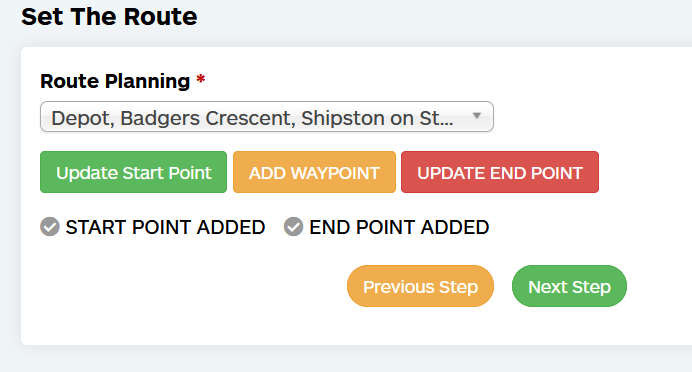
- In route planning find the location the vehicle will be starting at.
- Then press Add Start Point (the grey tick underneath will go bolder)
- If the end point is the same, press Add End Point (the grey tick underneath will go bolder).
- Do not add any waypoints.
- Click next step
Step 4
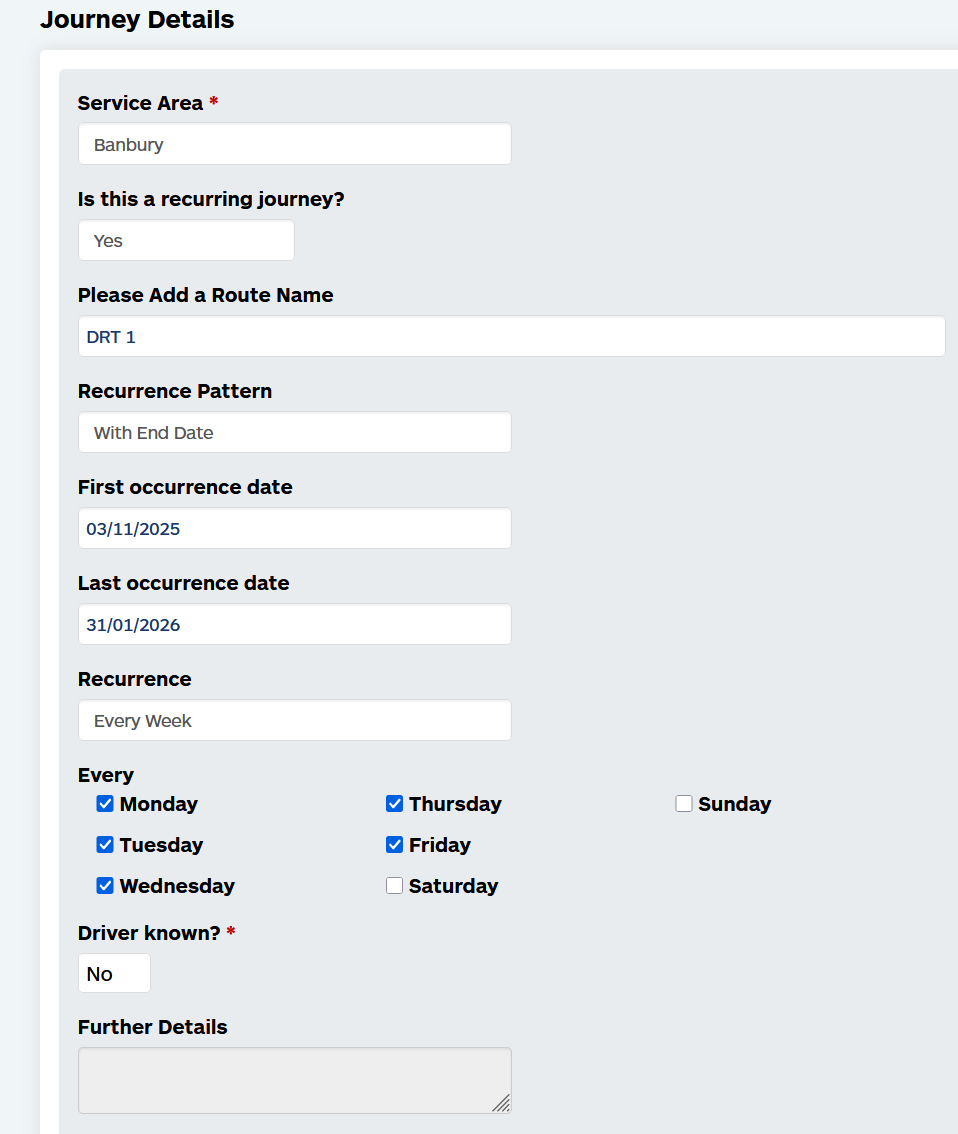
- Select the service area the vehicle will be operating in
- Set (unless it's a one off DRT journey), recurring to yes
- and paste or give the service a name e.g. DRT (this is what will show on the journey tables)
- Set with End Date
- Set the first recurrence date
- Set the latest occurrence date
- Set every week
- Then set which days of the week it operates on
- Set driver known no
- Add any further details (likely left blank)
- Select create journey
Your time slots will now generate and you can now add bookings by selecting create journey, DRT.
Passengers who have access to this service or have a related service area assigned in their profile can be booked on to this service.