How to Pinpoint a Location
Google Maps may not always accurately display an address on a map, especially in rural areas. In these cases, individuals may find themselves in a remote area where Google incorrectly identifies their location or inaccurately marks the map.
To address this issue, we recommend pinpointing all locations using What3Words. This will be indicated in Road XS with the What3Words logo against passenger, driver, and location addresses to signify that their location has been pinpointed using What3Words.
What3Words can be used to pinpoint:
- Passenger locations
- Driver locations
- Stored locations
By pinpointing a location with Road XS, it will override any stored address, allowing for precise control of the pickup location, even if the address is completely wrong on the map.
If a driver uses the driver portal app and the integrated navigation, they will be guided to the exact location you store with What3Words. This also assists when it comes to providing directions as it links directly to the drivers chosen navigation app.
How to Use What3Words
1) Open a new browser tab and go to www.what3words.com (or simply click visit What3Words from within the Road XS screen when adding a passenger, driver or location).
2) Search for the address or manually select the exact square for precise location
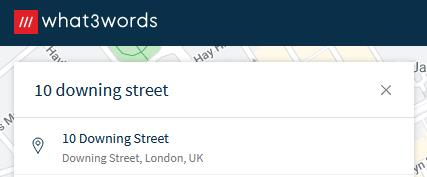
3) Copy the 3 words by clicking the copy button in the red square:

4) Update the driver, passenger, or location profiles and locate the What3Word Address Field
5) Paste the What3Words location into this field (use Control Key + V on the keyboard or right-click and select paste using the mouse)
6) Click the Pinpoint location button
7) Review the map to pinpoint the location
8) Click the save/update button to store the pinpointed location
Now, the location will be accurately pinpointed.