Adding a Location
Storing a location speeds up the journey creation process as it allows users to select the location from a drop-down list rather than entering the entire address each time.
We recommend exploring maps.google.com to understand how addresses are stored in Google, and relate that to the address fields of Road XS.
Please Note:
You will need to add the location category first before adding the location. The location category is also used for reporting. E.g. adding a location to a hospital category will then show that journey as a hospital journey without you needing to specify this when creating journeys.
How to Add a Location
To manage your locations, simply select the main menu, go to settings, and choose ‘Locations’.
Once here, you can either edit a location detail by clicking the pencil icon or add a new location by clicking the Add New Location green button.
When adding a new location, simply enter:
1) The name of the location
2) The address details (do not repeat the name here)
3) Optionally, a telephone number or email.
Make Sure the Address Lines Up Correctly
If the location address has been entered correctly, it should appear on the map. Here's an example of how an address works even when not all the fields are filled in.
Adding a favorite address may require some trial and error, but once it's stored, it will be used as part of the route planner.
Using What3Words
We use What3Words in Road XS to pinpoint locations on a map. This is particularly useful for remote locations, multiple locations at the same destination (such as hospitals) and for overcoming any address issues.
When the drivers navigate from the driver portal, we also use the What3Words location to get them to the exact spot.
It also improves your mileage estimates too.
You can pinpoint a location with What3Words as follows:
1. Open a new browser tab and visit www.what3words.com
2. Search for the address (or manually select the exact square for the location)
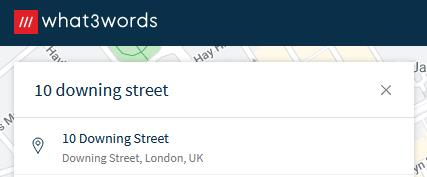
3. Copy the 3 words shown by clicking the copy button in the red square:

4. Edit the driver, passenger, or location profiles and look for the What3Word Address Field:

5. Paste the What3Words location into this field (either using Control Key + V on the keyboard or right-click and press paste using the mouse)
6. Click the Pinpoint location button
7. Watch the map to pinpoint the location
8. Click the save/update button to save the pinpointed location.
The location is then pinpointed and will override any address entered.